> ## Documentation Index
> Fetch the complete documentation index at: https://cubed3-docs-cub-2810-clarify-github-integration-repo-creati.mintlify.site/llms.txt
> Use this file to discover all available pages before exploring further.
# Continuous deployment
> This guide covers features and tools you can use to deploy your Cube project to Cube Cloud.
Each Cube deployment is configured to use one of the following deploy modes:
* **Deploy with Git** — Cube Cloud builds and deploys your project from a Git
repository. Use this mode when you want commits to the production branch
(or merges performed from the Cube Cloud UI) to automatically trigger a
production build.
* **Deploy with CLI** — you push your project to Cube Cloud from your local
machine or CI/CD pipeline by running the `cubejs-cli deploy` command. The
production branch is **never** built automatically; it only changes when
somebody explicitly runs `cubejs-cli deploy`.
You can change the deploy mode at any time on the **Build & Deploy** tab of
the **Settings** screen.
Independently of the deploy mode, you can [connect a GitHub
repository](#deploy-with-github) to the deployment. Non-production branches
pushed to GitHub are then auto-synced into Cube Cloud and reflected in their
[staging environments][ref-environments-staging]. The production branch
follows the deploy mode: it auto-deploys in Git mode and stays manual in CLI
mode.
## Deploy with Git
Continuous deployment works by connecting a Git repository to a Cube Cloud
deployment and keeping the two in sync.
First, go to the **Build & Deploy** tab on the **Settings** screen and
select **Deploy with Git** under **Deploy with**. From the same screen you
can pick the production branch, connect a Git repository, and copy the
commands that set up Cube Cloud as a Git remote:
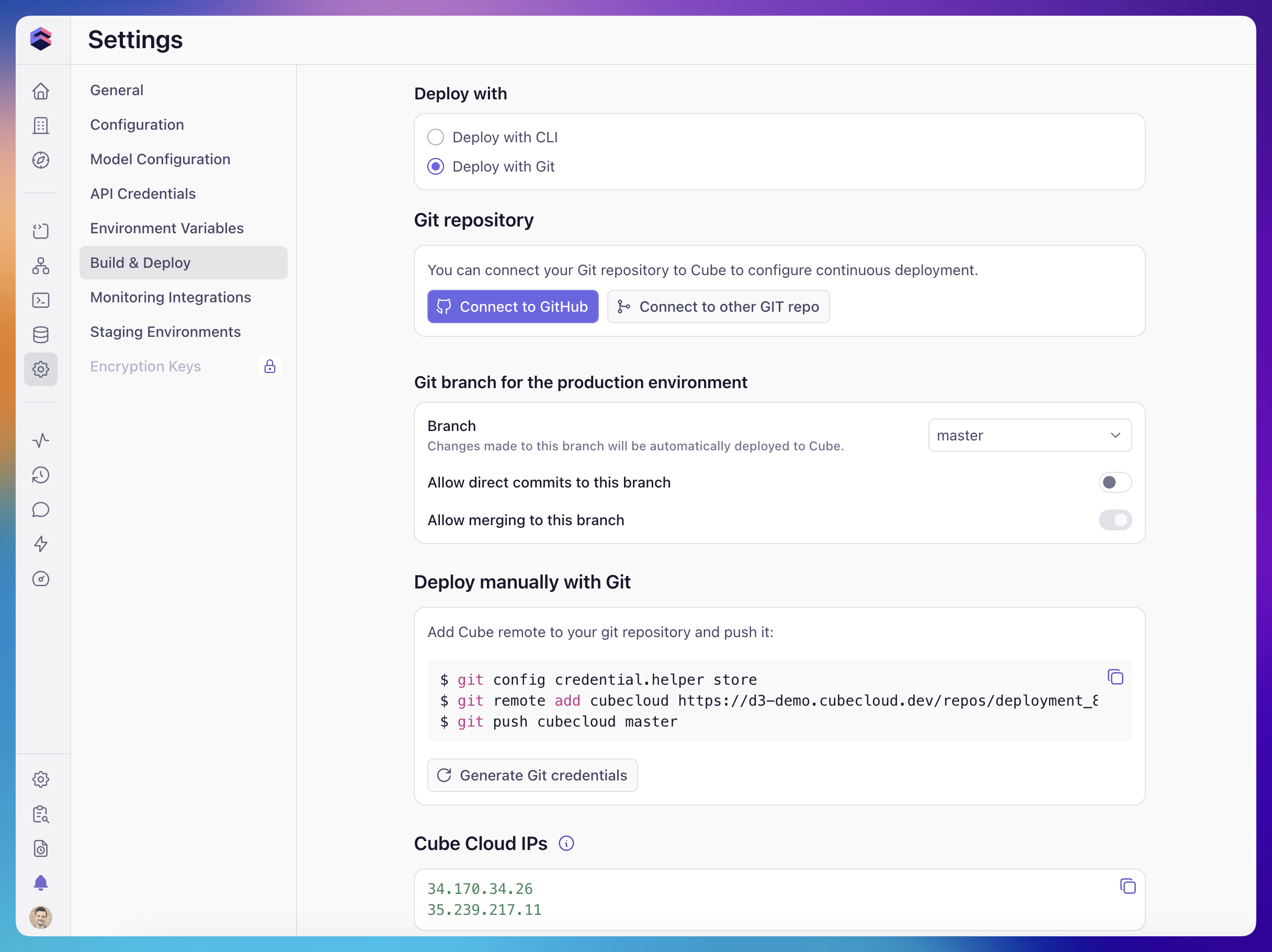 Click **Generate Git credentials** to obtain Git credentials. The instructions
to set up Cube Cloud as a Git remote are also available on the same screen:
```bash theme={null}
git config credential.helper store
git remote add cubecloud
git push cubecloud master
```
**Should I push to the Cube Cloud Git remote or connect my provider directly?**
If your data model already lives in a hosted Git provider (GitHub, GitLab, or
Bitbucket), **connect that repository directly** — see [Deploy with
GitHub](#deploy-with-github) below, or [import via SSH][ref-import-ssh] for
GitLab and Bitbucket. You then push only to your own repository and Cube Cloud
stays in sync automatically through a webhook, with no need to also push to the
`cubecloud` remote.
Push to the Cube Cloud Git remote (`git push cubecloud …`) only when you are
**not** connecting an external provider — for example, when Cube Cloud is the
only place your data model is versioned. Pushing to both your own provider and
the `cubecloud` remote is redundant and risks the two copies diverging.
## Deploy with GitHub
You can connect a GitHub repository to your deployment by clicking the
**Connect to GitHub** button on the **Build & Deploy** tab of the
**Settings** screen and selecting your repository. This works with both the
**Deploy with Git** and **Deploy with CLI** deploy modes.
If your organization uses SAML SSO for GitHub authentication, make sure to start an active SAML
session prior to connecting to your GitHub account from Cube.
### GitHub App permissions
Connecting a GitHub repository installs the **Cube Cloud GitHub App**. Install
it on the **organization** that owns the repository (not just your personal
account), and grant it access either to the specific repositories you want to
connect or to all repositories in the organization. The app requests permission
to:
* **Read repository contents** — to clone your data model and pick up new
commits.
* **Administer repositories** — to create a repository on your behalf when you
choose *Create new repository* (see below).
* **Manage webhooks** — to receive push, pull-request, and branch-delete events
that keep staging environments and production in sync.
* **Read metadata** — the baseline access GitHub requires for any app.
If your organization restricts third-party application access, an **organization
owner must approve the Cube Cloud GitHub App installation**. Install and approve
the app *before* connecting or creating a repository — otherwise the repository
list will be empty, or the connection will fail with a permissions error.
### Creating a new repository
From the **Connect to GitHub** dialog you can either connect an existing
repository or choose **Create new repository** to have Cube Cloud create one for
you.
When Cube Cloud creates a repository in a **GitHub organization**, it is created
through the GitHub App installation. Depending on your organization's settings,
the person who initiated the creation is **not** automatically added as a
collaborator, and the new repository may not appear under your personal
repositories — look for it under the organization's repositories and add the
required collaborators or teams in GitHub afterwards.
A newly created repository also starts **empty**. Before a deployment can use a
project path inside it, the repository must contain a Cube project — that is, a
`model/` folder (the legacy `schema/` folder is also accepted). Connecting to an
empty repository, or to a path that has no `model/` folder, fails with a **"data
model not found"** error. Push an initial data model — or generate one from the
Cube Cloud UI — before pointing a deployment at it.
What happens after connecting depends on the deploy mode:
* In **Deploy with Git** mode, Cube Cloud will automatically deploy from the
specified production branch (`master` by default) on every push, and also
sync non-production branches into their staging environments.
* In **Deploy with CLI** mode, only non-production branches are auto-synced
into their staging environments. See [Connecting GitHub on a CLI
deployment](#connecting-github-on-a-cli-deployment) for details.
## Keeping your repository in sync
Once a repository is connected, Cube Cloud is notified of new commits through a
webhook — it does **not** poll your provider on a timer. In steady state a push
to a connected branch is picked up within seconds, and the Cube Cloud UI
reflects build and sync status within about ten seconds. A short (\~30 second)
per-branch cooldown between webhook events means rapid consecutive pushes to the
same branch may be briefly coalesced.
The **first connection** behaves differently. When you first connect a
repository, Cube Cloud performs a one-time full clone of it, registers the
webhook, and — for a newly provisioned or previously suspended deployment —
starts the staging, [development mode][ref-dev-mode], and IDE instances from a
cold state. Because of this, the first time a branch or commit appears in a
[staging environment][ref-environments-staging], development mode, the IDE, or
**Cubes & Views** in Explore can take noticeably longer (and longer still for
large repositories). This is a one-time warm-up: after the initial clone
completes and the instances are running, later pushes sync within seconds.
A branch appears in the branch switcher only after Cube Cloud has fetched it,
which happens when it is pushed *after* the webhook is active — a branch that
existed before you connected the repository shows up once the first sync
completes. Staging environments also suspend after 10 minutes of inactivity and
take a moment to resume on the next request.
## Deploy with CLI
When a deployment is configured to deploy with CLI, production builds are
**only** triggered when you (or your CI/CD pipeline) push the project to
Cube Cloud by running:
```bash theme={null}
npx cubejs-cli deploy --token
```
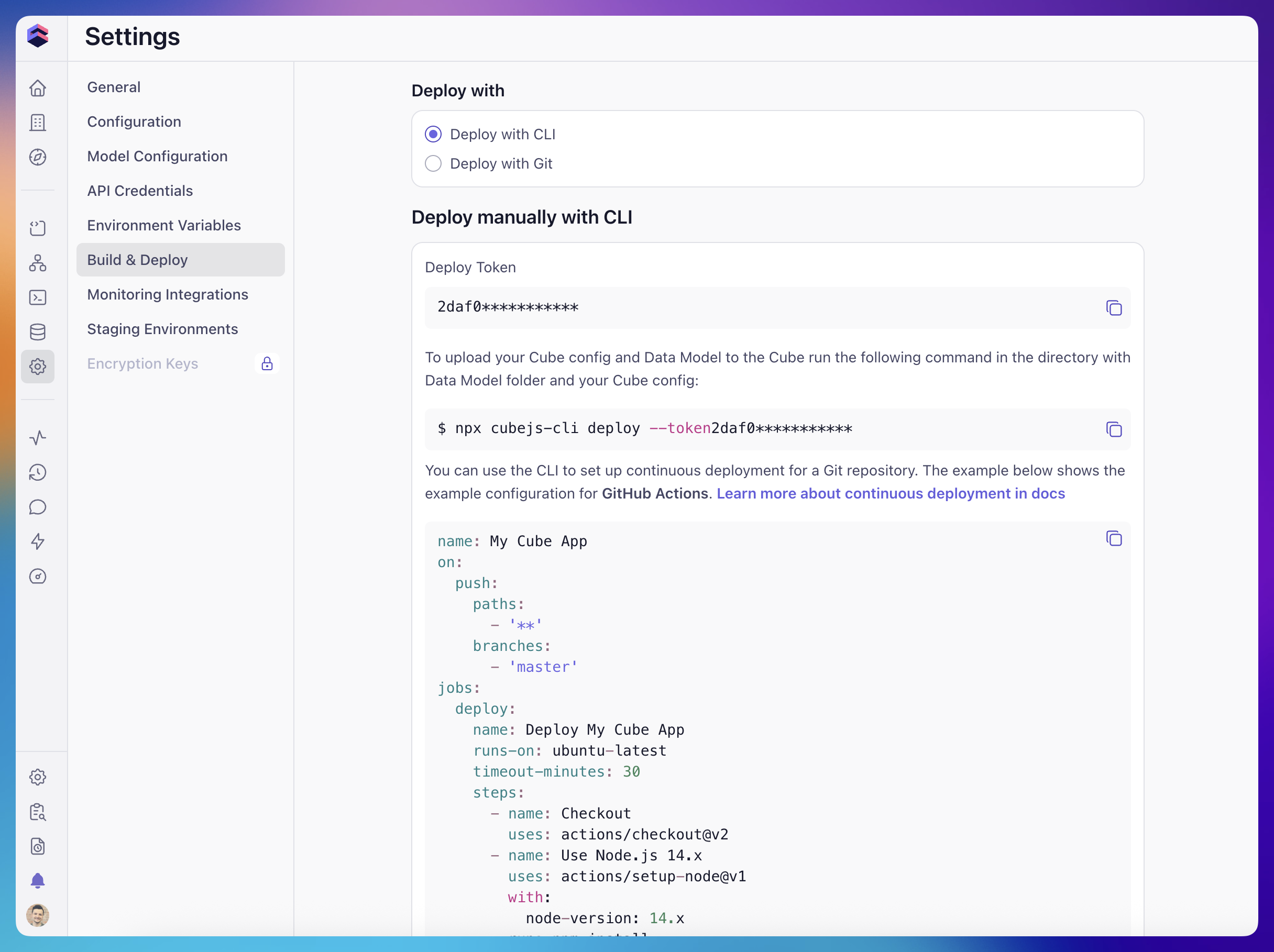
You can find your Deploy Token, along with copy-paste instructions and an
example CI/CD pipeline config (such as a GitHub Actions workflow), on the
**Build & Deploy** tab of the **Settings** screen. The same screen lets you
regenerate the token if it needs to be rotated.
Click **Generate Git credentials** to obtain Git credentials. The instructions
to set up Cube Cloud as a Git remote are also available on the same screen:
```bash theme={null}
git config credential.helper store
git remote add cubecloud
git push cubecloud master
```
**Should I push to the Cube Cloud Git remote or connect my provider directly?**
If your data model already lives in a hosted Git provider (GitHub, GitLab, or
Bitbucket), **connect that repository directly** — see [Deploy with
GitHub](#deploy-with-github) below, or [import via SSH][ref-import-ssh] for
GitLab and Bitbucket. You then push only to your own repository and Cube Cloud
stays in sync automatically through a webhook, with no need to also push to the
`cubecloud` remote.
Push to the Cube Cloud Git remote (`git push cubecloud …`) only when you are
**not** connecting an external provider — for example, when Cube Cloud is the
only place your data model is versioned. Pushing to both your own provider and
the `cubecloud` remote is redundant and risks the two copies diverging.
## Deploy with GitHub
You can connect a GitHub repository to your deployment by clicking the
**Connect to GitHub** button on the **Build & Deploy** tab of the
**Settings** screen and selecting your repository. This works with both the
**Deploy with Git** and **Deploy with CLI** deploy modes.
If your organization uses SAML SSO for GitHub authentication, make sure to start an active SAML
session prior to connecting to your GitHub account from Cube.
### GitHub App permissions
Connecting a GitHub repository installs the **Cube Cloud GitHub App**. Install
it on the **organization** that owns the repository (not just your personal
account), and grant it access either to the specific repositories you want to
connect or to all repositories in the organization. The app requests permission
to:
* **Read repository contents** — to clone your data model and pick up new
commits.
* **Administer repositories** — to create a repository on your behalf when you
choose *Create new repository* (see below).
* **Manage webhooks** — to receive push, pull-request, and branch-delete events
that keep staging environments and production in sync.
* **Read metadata** — the baseline access GitHub requires for any app.
If your organization restricts third-party application access, an **organization
owner must approve the Cube Cloud GitHub App installation**. Install and approve
the app *before* connecting or creating a repository — otherwise the repository
list will be empty, or the connection will fail with a permissions error.
### Creating a new repository
From the **Connect to GitHub** dialog you can either connect an existing
repository or choose **Create new repository** to have Cube Cloud create one for
you.
When Cube Cloud creates a repository in a **GitHub organization**, it is created
through the GitHub App installation. Depending on your organization's settings,
the person who initiated the creation is **not** automatically added as a
collaborator, and the new repository may not appear under your personal
repositories — look for it under the organization's repositories and add the
required collaborators or teams in GitHub afterwards.
A newly created repository also starts **empty**. Before a deployment can use a
project path inside it, the repository must contain a Cube project — that is, a
`model/` folder (the legacy `schema/` folder is also accepted). Connecting to an
empty repository, or to a path that has no `model/` folder, fails with a **"data
model not found"** error. Push an initial data model — or generate one from the
Cube Cloud UI — before pointing a deployment at it.
What happens after connecting depends on the deploy mode:
* In **Deploy with Git** mode, Cube Cloud will automatically deploy from the
specified production branch (`master` by default) on every push, and also
sync non-production branches into their staging environments.
* In **Deploy with CLI** mode, only non-production branches are auto-synced
into their staging environments. See [Connecting GitHub on a CLI
deployment](#connecting-github-on-a-cli-deployment) for details.
## Keeping your repository in sync
Once a repository is connected, Cube Cloud is notified of new commits through a
webhook — it does **not** poll your provider on a timer. In steady state a push
to a connected branch is picked up within seconds, and the Cube Cloud UI
reflects build and sync status within about ten seconds. A short (\~30 second)
per-branch cooldown between webhook events means rapid consecutive pushes to the
same branch may be briefly coalesced.
The **first connection** behaves differently. When you first connect a
repository, Cube Cloud performs a one-time full clone of it, registers the
webhook, and — for a newly provisioned or previously suspended deployment —
starts the staging, [development mode][ref-dev-mode], and IDE instances from a
cold state. Because of this, the first time a branch or commit appears in a
[staging environment][ref-environments-staging], development mode, the IDE, or
**Cubes & Views** in Explore can take noticeably longer (and longer still for
large repositories). This is a one-time warm-up: after the initial clone
completes and the instances are running, later pushes sync within seconds.
A branch appears in the branch switcher only after Cube Cloud has fetched it,
which happens when it is pushed *after* the webhook is active — a branch that
existed before you connected the repository shows up once the first sync
completes. Staging environments also suspend after 10 minutes of inactivity and
take a moment to resume on the next request.
## Deploy with CLI
When a deployment is configured to deploy with CLI, production builds are
**only** triggered when you (or your CI/CD pipeline) push the project to
Cube Cloud by running:
```bash theme={null}
npx cubejs-cli deploy --token
```
You can find your Deploy Token, along with copy-paste instructions and an
example CI/CD pipeline config (such as a GitHub Actions workflow), on the
**Build & Deploy** tab of the **Settings** screen. The same screen lets you
regenerate the token if it needs to be rotated.
 Cube Cloud still maintains an internal Git repository for the deployment so
that features such as [development mode][ref-dev-mode] and branching can work.
This internal repository is overwritten on every successful CLI deploy — only
the contents of your most recent `cubejs-cli deploy` invocation are used to
build and run production.
### Connecting GitHub on a CLI deployment
You can still [connect a GitHub repository](#deploy-with-github) to a CLI
deployment. When you do:
* Pushes to **non-production branches** (typically feature branches) are
picked up by the GitHub webhook and automatically synced into Cube Cloud,
so the corresponding [staging environments][ref-environments-staging]
reflect the latest commits without any manual step.
* Pushes to the **production branch** are intentionally **not**
auto-deployed in CLI mode. The production branch only changes when
somebody runs `cubejs-cli deploy` against the deployment.
This gives you GitHub-driven previews for feature work while keeping the
production deploy gated on an explicit CLI invocation (for example, from your
CI/CD pipeline after a release is approved).
### Development mode with CLI deployments
[Development mode][ref-dev-mode] is fully available on CLI deployments:
developers can enter dev mode, switch branches, save changes, commit them,
and even merge branches into the production branch from the Cube Cloud UI.
However, in CLI mode, **none of these actions trigger a production build or
redeploy**. Specifically:
* Saving or committing changes in dev mode only updates the per-developer
[development environment][ref-environments-dev] and the corresponding
branch in the internal repository. Production is not affected.
* Merging a branch into the production branch from the Cube Cloud UI updates
the production branch in the internal repository but **does not** rebuild
or redeploy the [production environment][ref-environments-prod].
* Any changes made through the UI are **overwritten on the next
`cubejs-cli deploy`**, which uploads the contents of your local project to
Cube Cloud and triggers a production build.
In other words, a CLI-mode deployment will not change production just because
somebody pressed **Enter Development Mode** and merged a work-in-progress
branch — production only changes when somebody (or some pipeline) explicitly
runs `cubejs-cli deploy` against the deployment.
If you want changes made in the Cube Cloud UI to flow to production
automatically, switch the deployment to [Deploy with Git](#deploy-with-git).
[ref-dev-mode]: /docs/data-modeling/dev-mode
[ref-environments-dev]: /admin/deployment/environments#development-environments
[ref-environments-prod]: /admin/deployment/environments#production-environment
[ref-environments-staging]: /admin/deployment/environments#staging-environments
[ref-import-ssh]: /docs/getting-started/migrate-from-core/import-git-repository-via-ssh
Cube Cloud still maintains an internal Git repository for the deployment so
that features such as [development mode][ref-dev-mode] and branching can work.
This internal repository is overwritten on every successful CLI deploy — only
the contents of your most recent `cubejs-cli deploy` invocation are used to
build and run production.
### Connecting GitHub on a CLI deployment
You can still [connect a GitHub repository](#deploy-with-github) to a CLI
deployment. When you do:
* Pushes to **non-production branches** (typically feature branches) are
picked up by the GitHub webhook and automatically synced into Cube Cloud,
so the corresponding [staging environments][ref-environments-staging]
reflect the latest commits without any manual step.
* Pushes to the **production branch** are intentionally **not**
auto-deployed in CLI mode. The production branch only changes when
somebody runs `cubejs-cli deploy` against the deployment.
This gives you GitHub-driven previews for feature work while keeping the
production deploy gated on an explicit CLI invocation (for example, from your
CI/CD pipeline after a release is approved).
### Development mode with CLI deployments
[Development mode][ref-dev-mode] is fully available on CLI deployments:
developers can enter dev mode, switch branches, save changes, commit them,
and even merge branches into the production branch from the Cube Cloud UI.
However, in CLI mode, **none of these actions trigger a production build or
redeploy**. Specifically:
* Saving or committing changes in dev mode only updates the per-developer
[development environment][ref-environments-dev] and the corresponding
branch in the internal repository. Production is not affected.
* Merging a branch into the production branch from the Cube Cloud UI updates
the production branch in the internal repository but **does not** rebuild
or redeploy the [production environment][ref-environments-prod].
* Any changes made through the UI are **overwritten on the next
`cubejs-cli deploy`**, which uploads the contents of your local project to
Cube Cloud and triggers a production build.
In other words, a CLI-mode deployment will not change production just because
somebody pressed **Enter Development Mode** and merged a work-in-progress
branch — production only changes when somebody (or some pipeline) explicitly
runs `cubejs-cli deploy` against the deployment.
If you want changes made in the Cube Cloud UI to flow to production
automatically, switch the deployment to [Deploy with Git](#deploy-with-git).
[ref-dev-mode]: /docs/data-modeling/dev-mode
[ref-environments-dev]: /admin/deployment/environments#development-environments
[ref-environments-prod]: /admin/deployment/environments#production-environment
[ref-environments-staging]: /admin/deployment/environments#staging-environments
[ref-import-ssh]: /docs/getting-started/migrate-from-core/import-git-repository-via-ssh